
Adding widgets to resource pages in the back office
The back office can now show widgets—interactive cards such as charts, counters, and embedded pages—on resource pages, not only on dashboards. A resource page is a back-office screen for a specific type of record, such as the sessions list or an individual charge point.
By placing widgets on resource pages, you can surface the most relevant data and tools exactly where your team works.
In this article, you'll learn how to place and order widgets on resource pages.
Before you start
To assign widgets to resource pages, you must have one of the following roles: Org admin (Global or Operator type) or a custom role with the appropriate permissions.
How it works
ImportantResource pages reuse widgets you've already created. In multi-operator tenants, each widget is created for a specific operator or as a global widget available to all of them.
To place a widget on a resource page, you create a resource widget configuration for that page. Like a widget, the configuration applies to a specific operator or to all of them. It lists the widgets eligible for that operator and page, which you add and arrange in the order you want.
A widget becomes eligible for a page in its own settings: when you create the widget, you select the resource pages it's allowed to appear on. Only eligible widgets appear in the configuration's list. For details on making a widget eligible for a page, see Creating custom widgets in the back office.
TipAfter you place a widget or change where it appears, it may take a few minutes to show up due to caching. If it doesn't appear, refresh the page or check back shortly.
Adding a widget to a resource page
To add a widget to a resource page:
- In the back office main menu, go to System > Resource widgets and click Create resource widget configuration.
- In the General tab, from the Resource drop-down menu, select a resource page, for example Sessions listing.
NoteIf a resource widget configuration already exists for a page, that page won't appear in the menu — each page can have only one configuration per operator. To add a widget to it, open the existing configuration and add the widget there.
-
From the Operator drop-down menu, choose the operator this configuration applies to, or leave it empty to make it global.
-
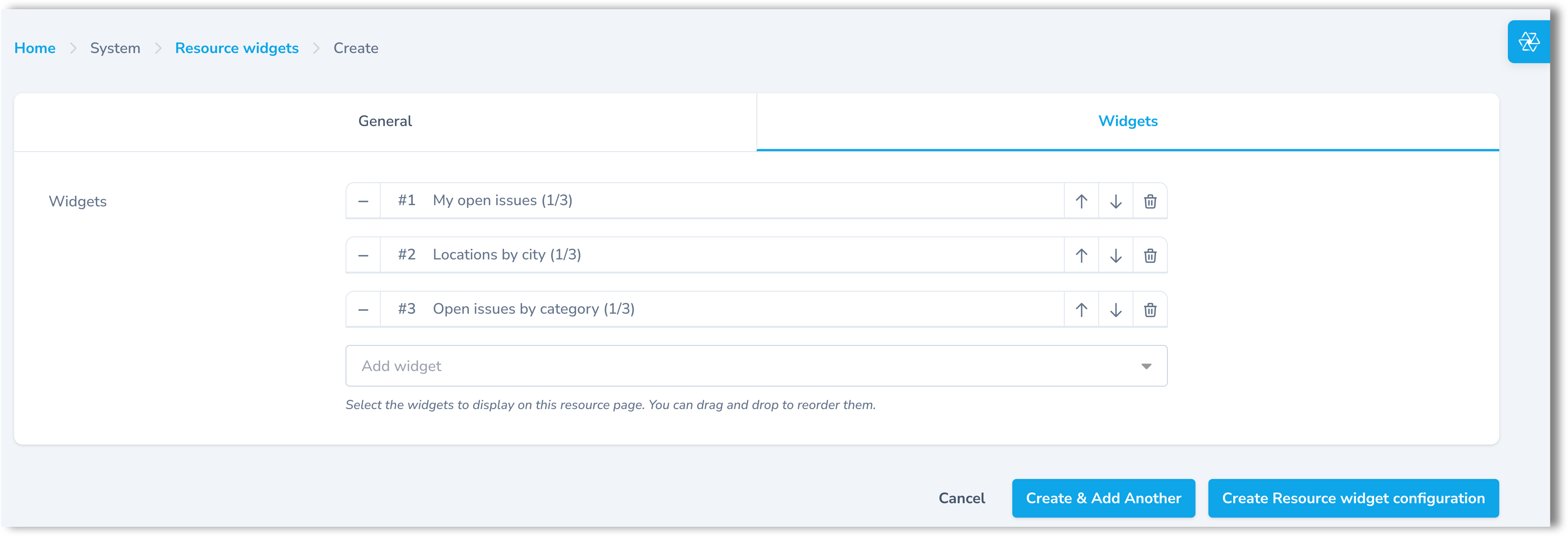
In the Widgets tab, click Add widget and select the widgets to display. The list includes only widgets that are eligible for the selected page. Use the arrows to set the order in which they appear on the page.
-
Click Create resource widget configuration.
NoteWidgets added to resource pages remain available for dashboards and can be displayed on any of them.
Updated 4 months ago